Logging in Using Multi-Factor Authentication
If multi-factor authentication is enabled for your account,

The very first time multi-factor authentication is used, you will need to enroll and authenticate yourself.
-
Download FreeOTP Authenticator, Goggle Authenticator or Microsoft Authenticator from the App Store or Google Play to your mobile device.
These apps provide the one time code that must be entered for you to access PACOM VIGIL CORE.
- Make sure you have the correct URL for your PACOM VIGIL CORE system.
- Select the appropriate Language from the drop-down list.
- Click Login.
-
Another login screen displays for you to enter your username and password.
- Follow the instructions on the Mobile Authenticator Setup screen to complete setting up MFA for your account.
Scan the QR code using your mobile phone (or device) then enter your one time code generated by the authenticator you download on your mobile device.
The one time code is valid for 60 seconds.
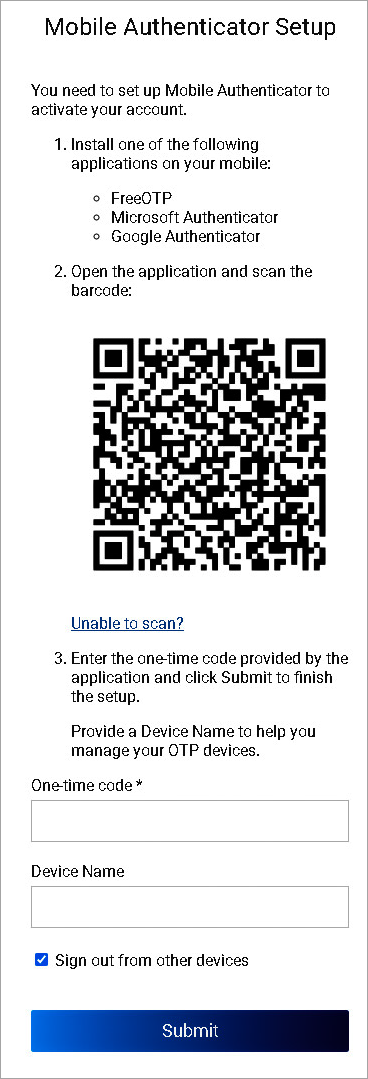
- Click Submit.
Successive log ins only require that you enter your credentials and the generated one-time code.
- Make sure you have the correct URL for your PACOM VIGIL CORE system.
- Select the appropriate Language from the drop-down list.
- Click Login.
- Enter your Username and Password.
- Click Login.
- Enter the one time code that is generated by the authenticator app on your mobile phone (or device).